
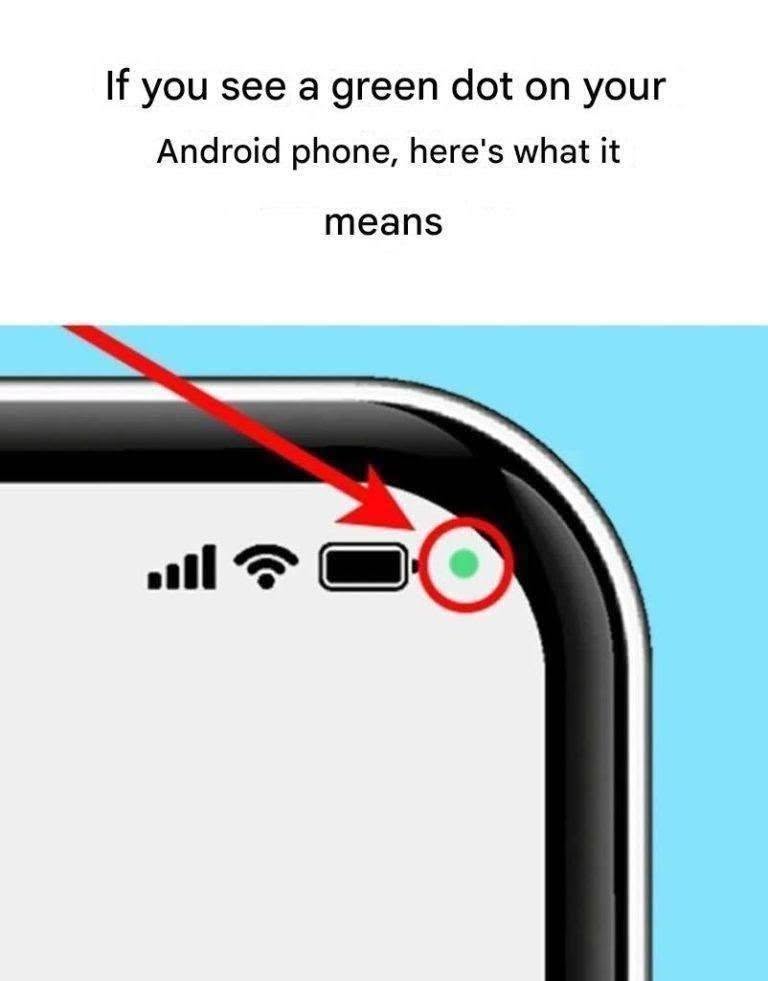
Smartphones have become integral extensions of our personal and professional lives, storing everything from sensitive financial records and medical information to private family photographs and work communications. As technology advances, mobile operating systems have continually strengthened security frameworks to give users greater visibility into how applications access sensitive hardware components.
One of the most noticeable security features introduced in modern mobile operating systems is the small green indicator light—or green dot—that periodically appears in the top corner of your screen’s status bar. While viral rumors online occasionally claim that this green dot signals a secret hack, a virus, or government surveillance, the truth is rooted in intentional, user-focused privacy design.
Understanding how this security indicator works, how to audit application permissions, and how mobile privacy ties into digital security, business management, and legal rights is essential for every smartphone owner. Below is a comprehensive guide to understanding the green dot on your Android device, managing app permissions, and protecting your digital footprint.
What Is the Green Dot Indicator on Android?
Introduced natively with Android 12 and maintained across subsequent software updates, the green dot in the upper-right corner of your display serves as a real-time privacy indicator.
The Core Function: Camera and Microphone Alerts
The green dot illuminates whenever an application currently open or running in the background accesses your device’s camera or microphone.
-
Active Usage: When you open a camera app to take a photo, record a video, make a video call on WhatsApp, or send a voice message, the green dot appears to confirm that the camera or microphone hardware is actively engaged.
-
Camera Icon / Mic Icon Transition: In many custom Android interfaces (such as Samsung One UI or Google Pixel Stock Android), the green dot briefly displays a tiny camera or microphone icon for a few seconds before collapsing into a simple green dot in the status bar.
This visual notification ensures that no application can secretly activate your camera or microphone without your knowledge.
What to Do When You See the Green Dot Unexpectedly
If you see the green dot while actively using Instagram, Zoom, or your phone’s default camera app, there is no cause for concern—it simply confirms that the app is performing its expected function. However, if the green dot appears while you are sitting on your home screen, reading an e-book, or using an app that should not require audio or video access, take the following steps immediately:
1. Swipe Down to Open the Notification Shade
Swipe down from the top of your screen to open your quick settings panel. At the top of the screen, tap directly on the green dot or camera/microphone icon. Android will instantly display a pop-up window naming the exact application currently using your hardware.
2. Audit App Permissions in Settings
If an unexpected app is accessing your microphone or camera, tap on the app name in the pop-up to enter its permissions manager:
-
Change Permission to “Ask Every Time”: Ensures the app must request explicit permission before turning on the camera or microphone.
-
Change Permission to “Only While Using the App”: Prevents the app from recording audio or video in the background when closed.
-
Select “Don’t Allow”: Revokes hardware access entirely if the app does not need camera or microphone features to operate.
3. Check Location Indicators
In addition to the green dot for camera and microphone activity, modern smartphones display a location pin icon in the status bar whenever an app accesses your real-time GPS location. Auditing location permissions regularly helps preserve battery life and protects your physical privacy.
Android Privacy Controls: Toggle Switches for Universal Protection
Modern Android versions provide global master switches that allow users to cut off hardware access across all applications instantly.
Quick Settings Privacy Toggles
You can add two master privacy tiles to your Quick Settings drop-down menu:
-
Camera Access Toggle: Turning this off completely disables your phone’s physical camera hardware across all apps. If any app tries to open the camera, it will see a blank black feed.
-
Microphone Access Toggle: Turning this off mutes system-wide microphone input, preventing any background or foreground app from receiving audio.
Using these master toggles provides instant peace of mind during sensitive business meetings, personal conversations, or travel.
Cyber Security Risks: Spyware, Malware, and Stalkerware
While the green dot itself is a protective security feature, its appearance when you are not using a camera or microphone app can be an early indicator of malicious software.
Understanding Mobile Spyware
Malicious software—such as unauthorized tracking apps, stalkerware, or trojan viruses—can be accidentally installed via suspicious email links, unverified third-party app stores (sideloading APKs), or compromised web downloads. Once installed, spyware attempts to monitor keystrokes, record phone calls, and stream ambient audio or video.
Steps to Remove Suspected Malware
If an unfamiliar application continuously triggers the green dot and cannot be closed:
-
Reboot in Safe Mode: Hold the power button and restart your phone in Safe Mode. This prevents third-party apps from running on startup.
-
Uninstall Unrecognized Apps: Go to Settings > Apps and review the full list of installed software. Delete any app you do not recognize or did not intentionally install.
-
Run Google Play Protect: Open the Google Play Store, tap your profile icon, select Play Protect, and run a full security scan to detect hidden malware threats.
Financial, Insurance, and Legal Implications of Mobile Privacy
Mobile security extends beyond personal privacy; it carries real implications for business operations, personal finance, and legal compliance.
Protecting Financial Accounts and Credit
Modern mobile banking apps rely heavily on biometric authentication (facial recognition and fingerprint scanning) and two-factor authentication (2FA). If a malicious app gains unauthorized access to your phone’s cameras, screen input, or SMS messages, cybercriminals can potentially compromise online banking credentials, leading to identity theft or financial fraud.
Business Compliance and Intellectual Property
For working professionals, business managers, and corporate executives, corporate espionage and data leaks represent major operational risks:
-
Confidentiality: Allowing unauthorized background microphone access during private client calls or executive strategy meetings can violate corporate non-disclosure agreements (NDAs) and compromise sensitive business investments.
-
Cyber Insurance Claims: Many corporate insurance policies require organizations to maintain strict mobile device management (MDM) protocols and updated security practices. Failing to maintain device security can complicate business insurance claims following a data breach.
Legal Protections and Consumer Privacy Rights
Federal and state privacy laws (such as the California Consumer Privacy Act / CCPA and international regulations like GDPR) grant consumers legal rights regarding personal data collection:
-
Wiretapping and Recording Laws: In many legal jurisdictions, recording audio conversations without the consent of all parties violates criminal wiretapping statutes.
-
Legal Remedies: If an unauthorized software developer or corporation illegally records your private voice or video data without permission, affected individuals can seek legal services or consult an attorney specializing in cybersecurity law to pursue damages.
Practical Tips for Maintaining Mobile Privacy and Security
To keep your mobile device secure and maintain full control over your private information, adopt these best practices:
-
Keep Operating System Updated: Always install the latest Android OS updates and security patches promptly. Updates contain critical security fixes that patch software vulnerabilities.
-
Only Download Apps from Trusted Sources: Download applications exclusively from official platforms like the Google Play Store or manufacturer app stores. Avoid downloading unverified APK files from unknown websites.
-
Review Permissions Regularly: Perform a monthly permission audit by visiting Settings > Privacy > Permission Manager to review which apps have access to your contacts, camera, microphone, location, and photos.
-
Use Strong Screen Locks and Biometrics: Secure your phone with a strong PIN, complex password, or biometric authentication to prevent physical unauthorized access.
-
Beware of Phishing Links: Never click on suspicious links sent via SMS, messaging apps, or unfamiliar emails claiming urgent account security warnings.
Fascinating Facts About Mobile Operating Systems
-
Pioneered by Apple, Standardized by Google: Apple first introduced status bar privacy dots in iOS 14, and Google brought native green indicator dots to Android 12, making hardware alerts a global industry standard across mobile tech.
-
Hardware LED vs. Software Dot: While laptops often have a dedicated physical LED light wired directly to the camera circuit, smartphones use software-driven status indicators rendered directly by the core operating system kernel.
-
Billion-App Ecosystem: The Google Play Store hosts over 2.4 million applications, scanning billions of app installations daily via Google Play Protect to block malicious software.
Conclusion
The green dot on your Android phone screen is not a sign of a secret hack or a reason to panic; it is an invaluable, built-in security tool designed to give you complete visibility over your device’s camera and microphone. By acting as a visual alarm system, the green dot empowers you to catch rogue applications, manage background permissions, and protect your private conversations.
In an era where digital security intersects directly with personal safety, business management, financial stability, and legal rights, taking proactive control of your mobile privacy is essential. By auditing app permissions regularly, keeping your operating system updated, and following sound cyber hygiene habits, you can enjoy all the benefits of modern mobile technology with complete confidence and peace of mind.
Frequently Asked Questions (FAQ)
Does the green dot on Android mean my phone is being tapped?
No. The green dot simply indicates that an app currently on your phone is using your camera or microphone. If you are using a phone app, camera app, or sending a voice note, the dot is completely normal.
Can I permanently turn off the green dot indicator on Android?
No. The green privacy indicator is a mandatory core security feature built into the Android operating system to protect user privacy. It cannot be disabled in system settings.
What should I do if the green dot stays on when no apps are open?
Swipe down from the top of your screen and tap the green dot to see which app is active. Force close that app in settings, revoke its camera/microphone permissions, or uninstall it if you do not recognize it.
Is the green dot on Android the same as the green dot on iPhone?
Yes. Both Android and iOS use colored status bar indicators (green for camera/microphone on Android; green for camera and orange for microphone on iOS) to inform users when hardware is active.
How do I know if an app is tracking my location in the background?
Android displays a small location pin icon in the top status bar whenever an app accesses GPS location services. You can review and restrict location permissions under Settings > Privacy > Permission Manager > Location.
