
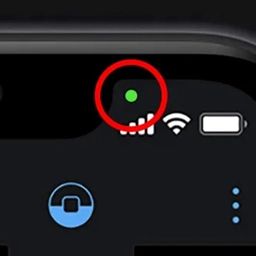
In an era dominated by smartphones, mobile apps, and continuous connectivity, personal digital privacy has become a top priority for consumers worldwide. Modern mobile operating systems—such as Apple’s iOS and Google’s Android—have introduced a variety of visual cues designed to give users total transparency over how their devices access sensitive sensors like hardware cameras and internal microphones.
Among these privacy indicators, few spark as much immediate user curiosity as the small green dot that occasionally appears near the top status bar, battery icon, or Dynamic Island area on mobile screens. While many users worry that a green dot signifies hidden surveillance, software bugs, or malware, it is actually a vital built-in security feature designed to protect your personal privacy.
Understanding how mobile privacy indicators function, auditing app permissions, and adopting smart cybersecurity habits helps safeguard your personal identity, prevent unauthorized data access, and keep your mobile devices operating securely.
What the Green Dot Represents on Modern Smartphones
The green dot on mobile operating systems acts as a real-time visual hardware indicator. Its primary purpose is to inform you whenever an active application is accessing your device’s hardware capabilities.
Green Dot vs. Orange/Yellow Dot
Understanding the difference between privacy light indicators ensures you know exactly what hardware components are active at any given moment:
-
The Green Dot: Indicates that an application is currently using your smartphone’s camera (or both your camera and microphone simultaneously). You will see this dot whenever you open native photo apps, record video stories, launch video calls on FaceTime or Zoom, or scan QR codes.
-
The Orange or Yellow Dot: Indicates that an application is currently using only your smartphone’s microphone. This appears when you record voice notes, participate in phone calls, or interact with virtual voice assistants.
+---------------------------+---------------------------------------+------------------------------------+
| Status Indicator          | Active Sensor / Hardware Access       | Typical Authorized App Scenario    |
+---------------------------+---------------------------------------+------------------------------------+
| Green Dot                 | Camera (or Camera + Microphone)       | Video calls, photo recording, QR   |
| Orange / Yellow Dot       | Microphone only                       | Voice calls, voice memos, assistant|
| Location Arrow Icon       | GPS Location Services                 | Map navigation, weather tracking   |
| Control Center Card       | Displays exact name of recent app     | Real-time permission verification  |
+---------------------------+---------------------------------------+------------------------------------+
What to Do If the Green Dot Appears Unexpectedly
If you see the green dot illuminated on your screen when you are not actively taking a photo, recording a video, or participating in a video call, it is essential to investigate immediately.
1. Check the Control Center / Notification Shade
Swipe down from the top-right corner of your iPhone (or pull down the notification panel on Android) to open the Control Center. At the very top of the screen, your phone will display a dedicated card listing the exact name of the application currently using or recently accessing your camera or microphone.
2. Force-Close Suspicious Applications
If an application you are not actively using appears in the privacy card, swipe up to force-close the app immediately. Some apps continue running camera processes in the background if they were left open on an active camera screen.
3. Review and Revoke App Permissions
Navigate to your device’s primary Settings menu:
-
Go to Settings > Privacy & Security > Camera (or Settings > Security & Privacy > Permission Manager > Camera on Android).
-
Review the full list of installed software applications.
-
Revoke camera access for any third-party apps, social media utilities, or casual games that do not require camera functionality to perform their primary purpose.
Cybersecurity, Legal Rights, and Financial Security
Mobile devices hold a treasure trove of sensitive personal information, including online banking credentials, credit card details, private health records, and family photos. Protecting your phone against unauthorized surveillance is directly connected to safeguarding your personal finances and legal identity.
Preventing Mobile Spyware and Phishing Threats
Unauthorized background camera access can occasionally be a sign of malicious software, malicious browser scripts, or unwanted stalkerware installed on an unpatched device. Malicious applications use stealth recording techniques to gather personal data, capture sensitive financial documents, or extract private conversations.
Legal Protections and Consumer Data Privacy Laws
Regulatory frameworks—such as the General Data Protection Regulation (GDPR) and state-level consumer privacy acts—require tech companies and software developers to maintain strict data transparency. Operating system manufacturers introduced mandatory status bar indicators specifically to satisfy legal consumer protection standards, ensuring users retain total control over their personal data.
Protecting Financial Accounts and Identity
Cybercriminals who compromise mobile devices often seek access to multi-factor authentication (MFA) codes, mobile wallet applications, and banking portals. Maintaining updated operating software, auditing application permissions regularly, and utilizing strong password managers are critical steps toward preventing financial fraud and protecting your credit score.
Practical Daily Tips for Mobile Privacy and Device Management
-
Keep Your Operating System Updated: Always install the latest software updates and security patches released by Apple or Google to fix known system vulnerabilities.
-
Audit Permissions Quarterly: Set a recurring calendar reminder every three months to review which apps have access to your camera, microphone, contacts, and precise location.
-
Download Apps Only from Official App Stores: Avoid side-loading unverified software or downloading applications from third-party websites, as these files bypass rigorous malware screening protocols.
-
Use Physical Camera Covers for Laptops and Tablets: For added physical security on stationary devices, slide-action plastic camera covers provide instant peace of mind.
-
Enable Location Access ‘While Using App’: Instead of granting permanent “Always Allow” location permissions, configure location settings so apps can access GPS coordinates only when actively open on your screen.
Fascinating Facts About Smartphone Hardware and Privacy Science
-
Physical LED Inspiration: The digital green dot feature on smartphones was directly inspired by the physical green LED indicator lights built into laptop bezels next to webcams.
-
Hardware-Level Isolation: On modern flagship smartphones, camera power circuits are linked to secure enclave chips, ensuring the status indicator cannot be bypassed by software hacks.
-
Massive App Ecosystem: The average modern smartphone user has between 80 to 100 apps installed, with over 50% requiring access to at least one sensitive hardware sensor.
-
Microphone Frequency Sensing: Beyond standard audio, advanced analytics tools can use ultrasonic audio beacons emitted in retail stores to track consumer foot traffic via mobile microphones if permission is granted.
Frequently Asked Questions (FAQ)
Is someone watching me if the green dot is on?
Not necessarily. In the vast majority of cases, the green dot simply means an app you are actively using—such as Camera, Instagram, WhatsApp, or Zoom—is accessing your camera. However, if the dot appears when no camera app is open, you should check your Control Center to identify which app is using the sensor.
Can an app turn on my camera without the green dot showing?
No. Modern mobile operating systems manage hardware indicators at the system level. Even if a malicious app attempts to bypass user settings, the operating system kernel automatically illuminates the privacy dot whenever the camera sensor receives power.
Why does the green dot appear when I unlock my phone?
Certain smartphones equipped with facial recognition technology (like Face ID) briefly activate the camera sensor to scan and verify your face when unlocking the home screen, causing the green dot to flash for a fraction of a second.
What is the difference between the green dot and the orange dot?
The green dot indicates that an application is accessing your device’s camera (or both camera and microphone). The orange dot indicates that an application is accessing only your microphone.
How do I completely block an app from using my camera?
Go to Settings > Privacy & Security > Camera on iOS, or Settings > Security & Privacy > Permission Manager > Camera on Android. Toggle off the camera access switch for any specific app you wish to block completely.
Conclusion
The green dot on your smartphone screen is one of the most effective user privacy innovations developed for modern mobile technology. Rather than being a cause for panic, it serves as a powerful shield, granting you total visual awareness over when your camera is active. By staying informed, performing regular permission audits, and maintaining basic mobile security habits, you keep your digital life, personal identity, and private data fully secure!
