
Smartphones have become an indispensable part of modern daily life, handling everything from our personal finance and banking accounts to private communications, photos, and professional schedules. With so much sensitive data stored in the palm of our hands, digital privacy and device security are more critical than ever. Yet, many users remain completely unaware of built-in security features operating right in front of their eyes.
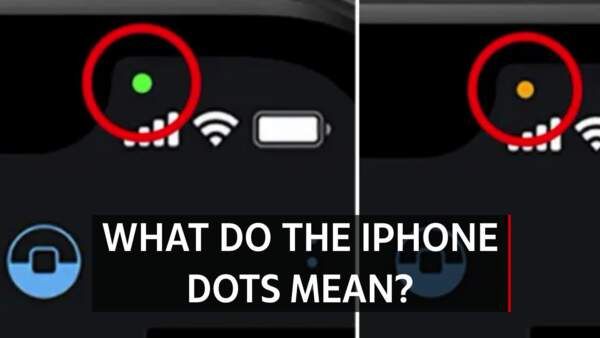
If you have ever glanced at the top of your iPhone screen and noticed a small glowing dot—sometimes orange or amber, other times bright green—you might have wondered what it signifies. Is it a software glitch, a cellular network indicator, or a warning sign?
These indicator lights are not accidental. Introduced by Apple as a vital privacy protection measure, these colored dots serve as an immediate alert to let you know when an app is actively accessing your device’s most sensitive hardware components: the microphone or the camera. In this comprehensive guide, we will break down exactly what the orange and green dots mean, why they matter for your digital security, and how you can take total control of your device’s privacy settings.
Decoding the Colors: Orange vs. Green Indicator Lights
Apple designed the iOS status bar indicators to be instantly recognizable and unambiguous. When a glowing dot appears near the top of your screen (usually right above the signal bars or within the Dynamic Island), it falls into one of two distinct categories:
                  [ STATUS BAR INDICATOR LIGHTS ]
                                │
        ┌───────────────────────┴───────────────────────┐
        ▼                                               ▼
[ ORANGE / AMBER DOT ]                           [ GREEN DOT ]
  • Microphone activation                         • Camera activation
  • Audio recording / Voice note                  • Photo / Video capture
  • Siri or voice dictation                       • Face ID scanning
1. The Orange (or Amber) Dot: Microphone Access
When you see a solid orange or amber dot appear in the status bar, it means an application on your iPhone is currently using your microphone.
-
When it’s normal: You will see the orange dot when you are actively recording a voice memo, making a phone call, talking to Siri, or using a speech-to-text dictation feature.
-
When it’s suspicious: If you are sitting on your home screen or using a calculator app and notice the orange dot glowing without any apparent reason, it indicates that a background application is listening to ambient audio without your direct awareness.
2. The Green Dot: Camera Access
When a bright green dot appears in the status bar, it means an application is actively using your camera (or both your camera and your microphone simultaneously, as the camera feed often requires audio input).
-
When it’s normal: The green dot lights up whenever you open the native Camera app to snap a photo, record a video, initiate a FaceTime call, or use a third-party app with active video features (such as scanning a document or recording a social media story).
-
When it’s suspicious: Similar to the microphone indicator, if the green dot appears while your phone is locked or while you are browsing a website that has no business using visual inputs, an app may be secretly recording video or taking photos.
Why Apple Introduced the Privacy Indicators
The introduction of the orange and green status indicators marked a major milestone in mobile device privacy. Before these indicators existed, users had very little visibility into what background software was doing behind the scenes. Malware, spyware, and poorly coded applications could covertly access device sensors without leaving a visible trace.
By implementing hardware-level indicator lights connected directly to the device’s physical sensors rather than the operating system software, Apple ensured that even if an app’s code is compromised, the light cannot be bypassed by software hacks. This transparency empowers everyday users to monitor their apps in real time, serving as an electronic watchdog against unauthorized surveillance.
Step-by-Step Guide: How to Check Which App Is Using Your Hardware
If you notice an orange or green dot blinking or glowing on your screen and want to know exactly which application triggered it, iOS makes it simple to check within seconds.
┌─────────────────────────────────────────────────────────┐
│               CHECKING APP PERMISSIONS                  │
└────────────────────────────┬────────────────────────────┘
                             │
                             ▼
┌─────────────────────────────────────────────────────────┐
│ STEP 1: OPEN CONTROL CENTER                             │
│ • Swipe down from the top-right corner of your screen   │
└────────────────────────────┬────────────────────────────┘
                             │
                             ▼
┌─────────────────────────────────────────────────────────┐
│ STEP 2: VIEW RECENT ACTIVITY                            │
│ • Look at the very top of the Control Center screen     │
│ • The name and icon of the app will be displayed        │
└────────────────────────────┬────────────────────────────┘
                             │
                             ▼
┌─────────────────────────────────────────────────────────┐
│ STEP 3: MANAGE PERMISSIONS                              │
│ • Go to Settings > Privacy & Security to revoke access  │
└─────────────────────────────────────────────────────────┘
1. Open the Control Center
Swipe down from the top-right corner of your iPhone screen (or swipe up from the bottom on older home-button models) to open the Control Center.
2. View the App Badge at the Top
At the very top of the Control Center screen, you will see a small label displaying the name of the application that recently used—or is currently using—your microphone or camera. If an app used the sensor within the last few minutes, it will also display a timestamp next to its name.
3. Adjust Permissions in Settings
If you see an unfamiliar app accessing your camera or microphone:
-
Go to your iPhone Settings.
-
Scroll down and tap on Privacy & Security.
-
Select Camera or Microphone to view a full list of applications with permission to access those sensors.
-
Toggle the switch next to any suspicious app to OFF to block its access permanently.
Protecting Your Personal Data and Digital Security
Understanding screen indicators is just one part of maintaining robust personal cybersecurity. Because smartphones hold sensitive financial records, passwords, and private communications, adopting strict device hygiene is essential:
-
Review Permissions Regularly: Audit your app permissions every few months. Many apps request camera or microphone access during initial setup and retain those permissions indefinitely, even if they rarely use those features.
-
Update Your Software: Always keep your iOS operating system updated to the latest version. Software updates frequently include critical security patches that protect against malicious exploits.
-
Download Apps Carefully: Only download applications from official app stores after checking user reviews and developer credentials to avoid rogue software designed to harvest personal data.
Fascinating Facts About Smartphone Privacy Technology
-
Physical Circuit Hardwiring: On iPhones, the status indicator lights are hardwired directly into the power rails of the camera and microphone sensors. This means software cannot disable the light while the sensor is active without physically cutting power to the component.
-
MacBook Equivalents: Apple brought a similar privacy feature to laptop users with the green hardware LED light next to the built-in FaceTime camera on MacBooks, which lights up whenever the camera lens is powered on.
-
The Rise of Digital Surveillance Awareness: Studies show that transparent privacy indicators significantly increase consumer awareness regarding background data collection, prompting major software developers to minimize unnecessary sensor tracking.
Practical Checklist for iPhone Privacy
-
Watch the Corners: Make a habit of glancing at the top-right corner of your screen when launching new apps to see if an indicator dot appears.
-
Revoke Unused Access: Remove microphone and camera permissions for apps you no longer use actively.
-
Audit Location Services: Alongside the camera and microphone, check your location permissions in Privacy & Security to ensure apps aren’t tracking your physical whereabouts constantly.
-
Use Strong Passcodes: Secure your device with a robust passcode and Face ID to prevent unauthorized physical access.
Conclusion
The orange and green dots on your iPhone screen are powerful, built-in privacy tools designed to keep you informed and protected. By understanding what these indicators mean, checking your Control Center when unexpected lights appear, and managing your app permissions regularly, you take active control of your digital privacy. Staying vigilant ensures that your personal information, communications, and private life remain secure.
Frequently Asked Questions (FAQ)
What does it mean if the orange dot is flashing instead of solid?
An orange dot that appears to flash or blink usually indicates that an app is repeatedly turning the microphone on and off in rapid succession, or that an audio recording session has just been initiated. Check your Control Center immediately to see which app is responsible.
Can an app use my camera or microphone without showing a dot?
On modern iPhones running updated versions of iOS, the hardware is physically tied to the status indicators, making it virtually impossible for an app to access the camera or microphone without triggering the light. However, older operating system versions or jailbroken devices may have vulnerabilities.
Why is my orange dot on when I’m not on a call?
If the orange dot is active when you aren’t on a call, a background application—such as a voice assistant, a social media app recording audio, or a dictation tool—is currently utilizing your microphone. Open your Control Center to identify the exact application.
How do I completely disable camera access for a specific app?
Open your iPhone Settings, scroll down to Privacy & Security, tap on Camera, and toggle the switch next to the desired application to the OFF position. This revokes its ability to use your camera indefinitely.
